
Create Control Apps
Create a Control app
To access API1.docs, click your user name located in the bottom‑left corner of the frontend and select the document from the menu that appears.
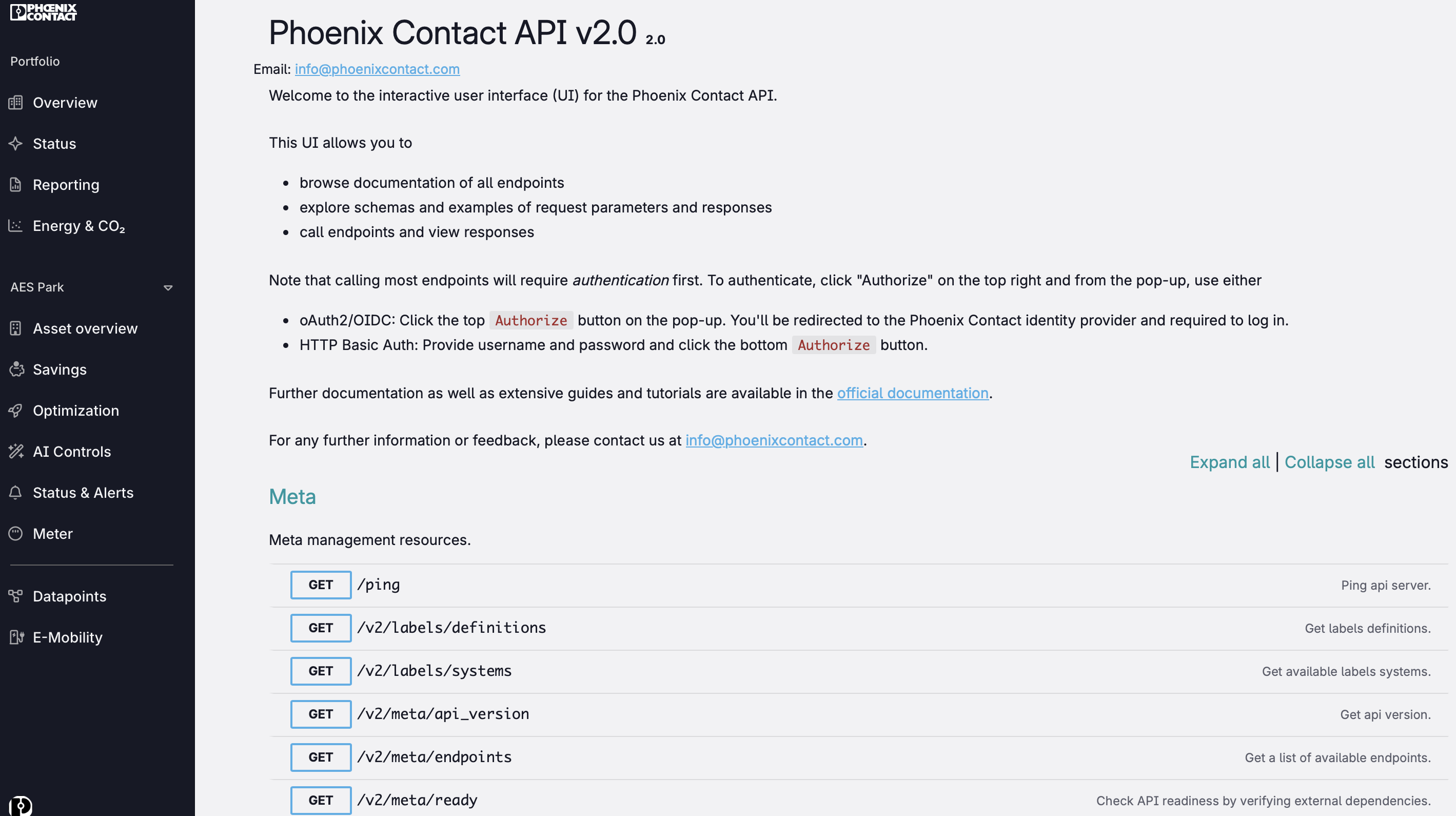
Scroll down to the Controls section and click on POST/v2/controls/app:
Enter the project_id, componentinproject_id, the algorithm and optionally a variation, name and description. Additionally, the priority and the reset_value must be set configured in the request body. Click on “try” to send the post request and to create the app.
Information about the controls algorithms and their variations can be found in the documentation: https://docs.emalyticscloud.com/en/products/controls/algorithms/
The project_id, componentinproject_id of a specific component can be found in the url when a component is selected in the optimization section the frontend.
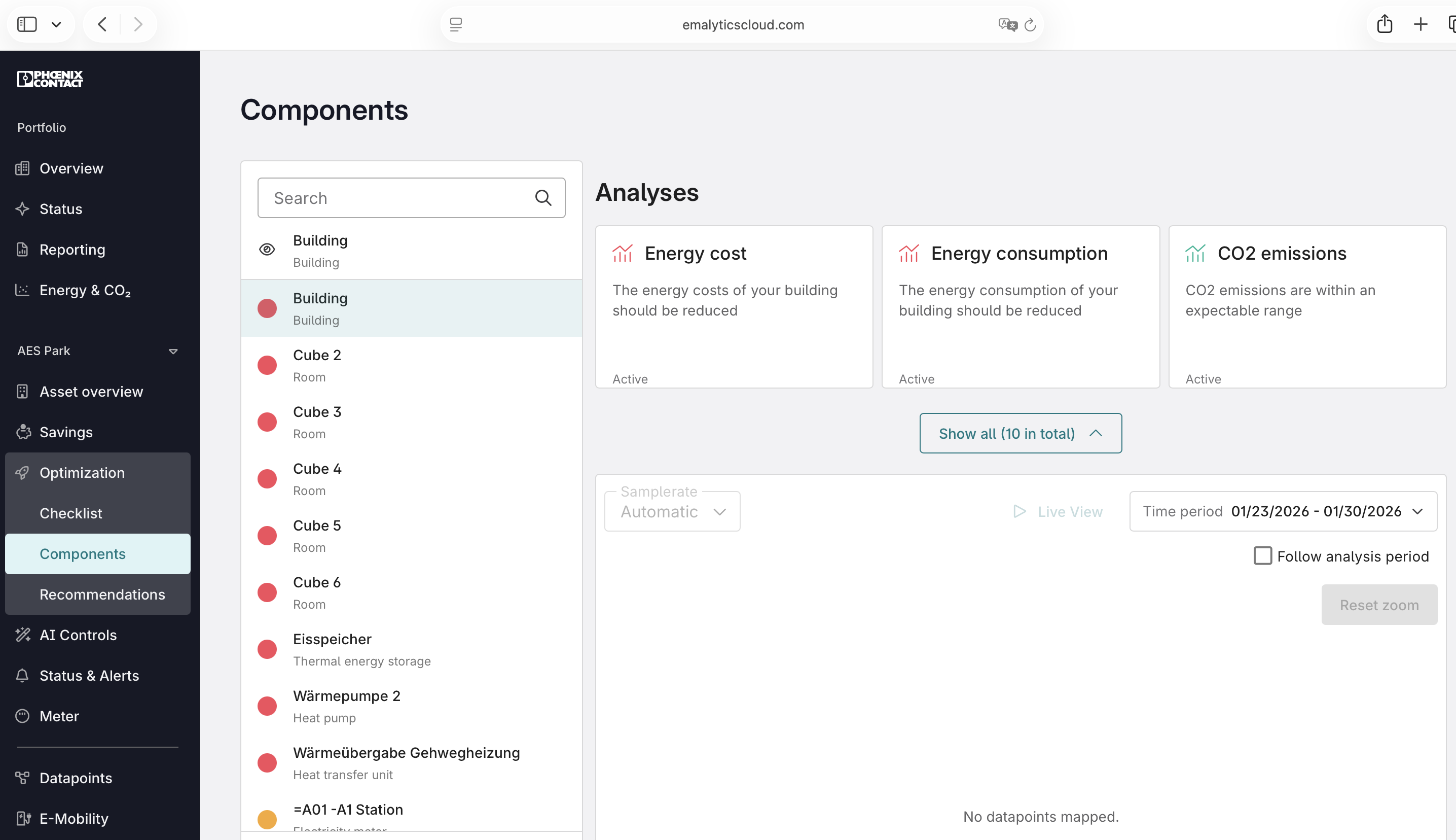
The first number in the URL after “…/optimization/components/…” is the project_id (2 in the example above), the second number is the componentinproject_id (9 in the example above).
The name of the controls app will be displayed in the frontend in the section AI Controls, so a meaningful name should be chosen (e.g. app name + component name: “hero AHU 2”)
The priority and reset_value must be specified for each output of the controls app. The most controls apps have only one output, so that the request body looks like below for the controls app “hero”:
SUP_T_AIR_SP is the pin_alphanumeric_id of the setpoint pin to which the hero controls app will write the calculated values (“supply air temperature setpoint” in this case). The pin_aphanumeric_ids can be found in the documentation.
{
  "setpoint_writing_params": {
                 "SUP_T_AIR_SP": {
                                   "keep_out_of_service": false,
                                   "priority": 13,
                                    "reset_value": "null"
    }
  }
}
The parameter priority is the BACnet priority (usually a value above 8 should be selected).
The reset_value is activated when the control app is deactivated or the connection to the Emalytics Connector is lost. Null means that the value in the BACnet array with the selected priority is released. The value with the next larger priority will become active after sending a null. Besides null, numerical values could also be chosen.
The configuration for a hero controls app can be found below:
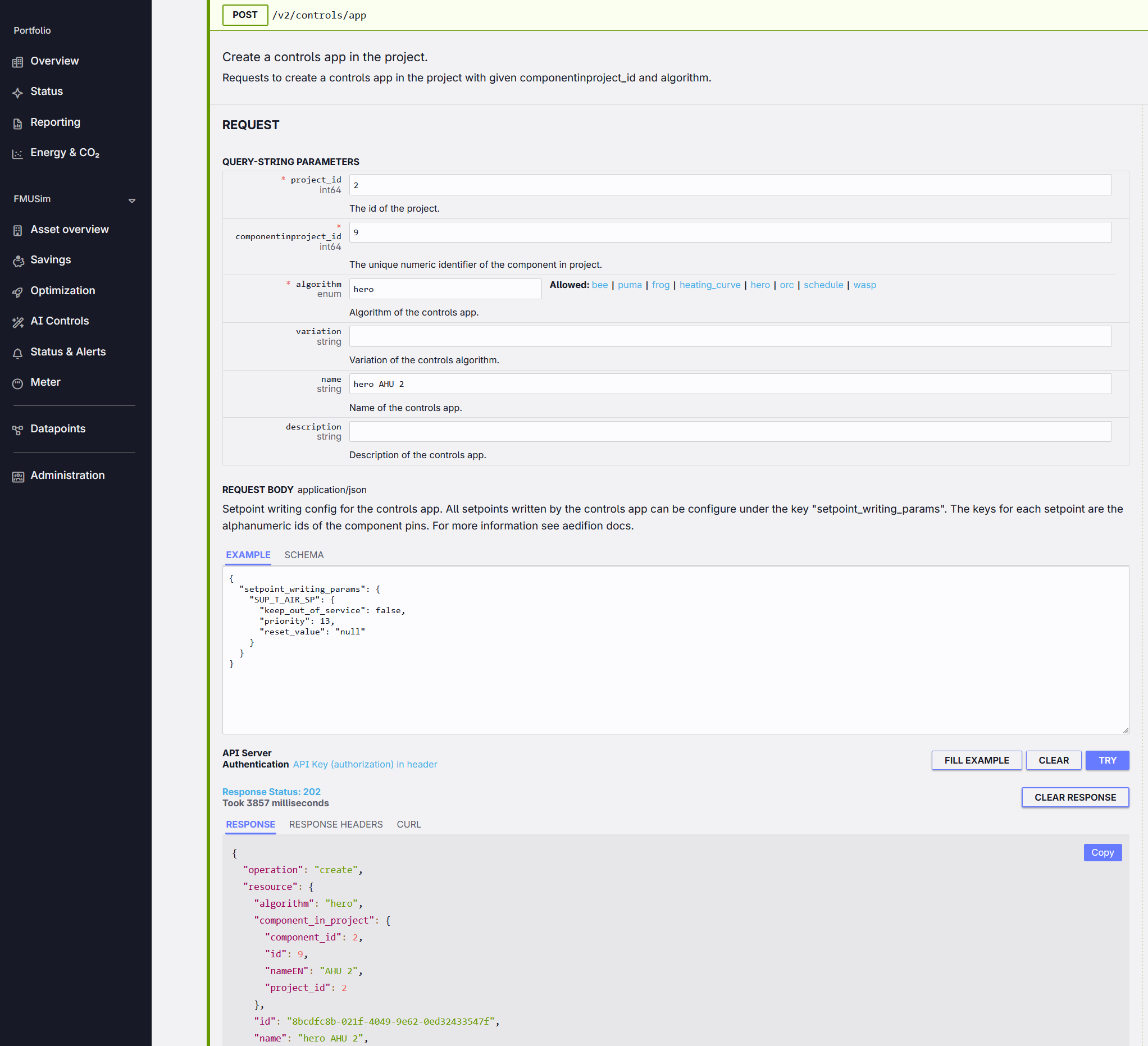
If the response message returns a successful creation of the app, the app can be started in the next step.
To start the controls app go to the AI section in the frontend, select the newly created app and click on the toggle button next to the app name.
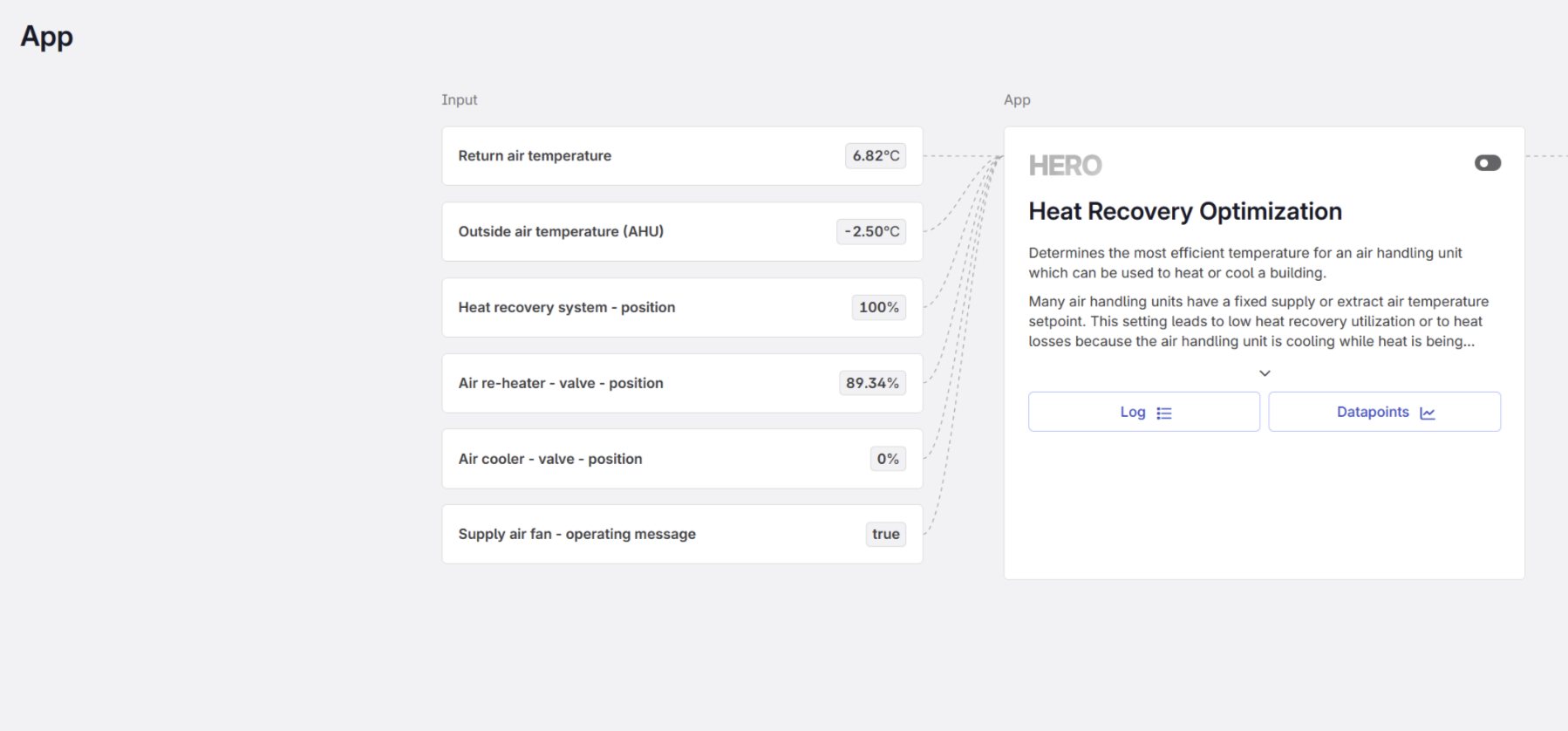
The controls apps can also be deactivated with the toggle button.
Deleting a controls app
To delete a specific controls app, the DELETE/v2/controls/app can be used. The app must be switched off (in the AI Controls section) before deleting the app:
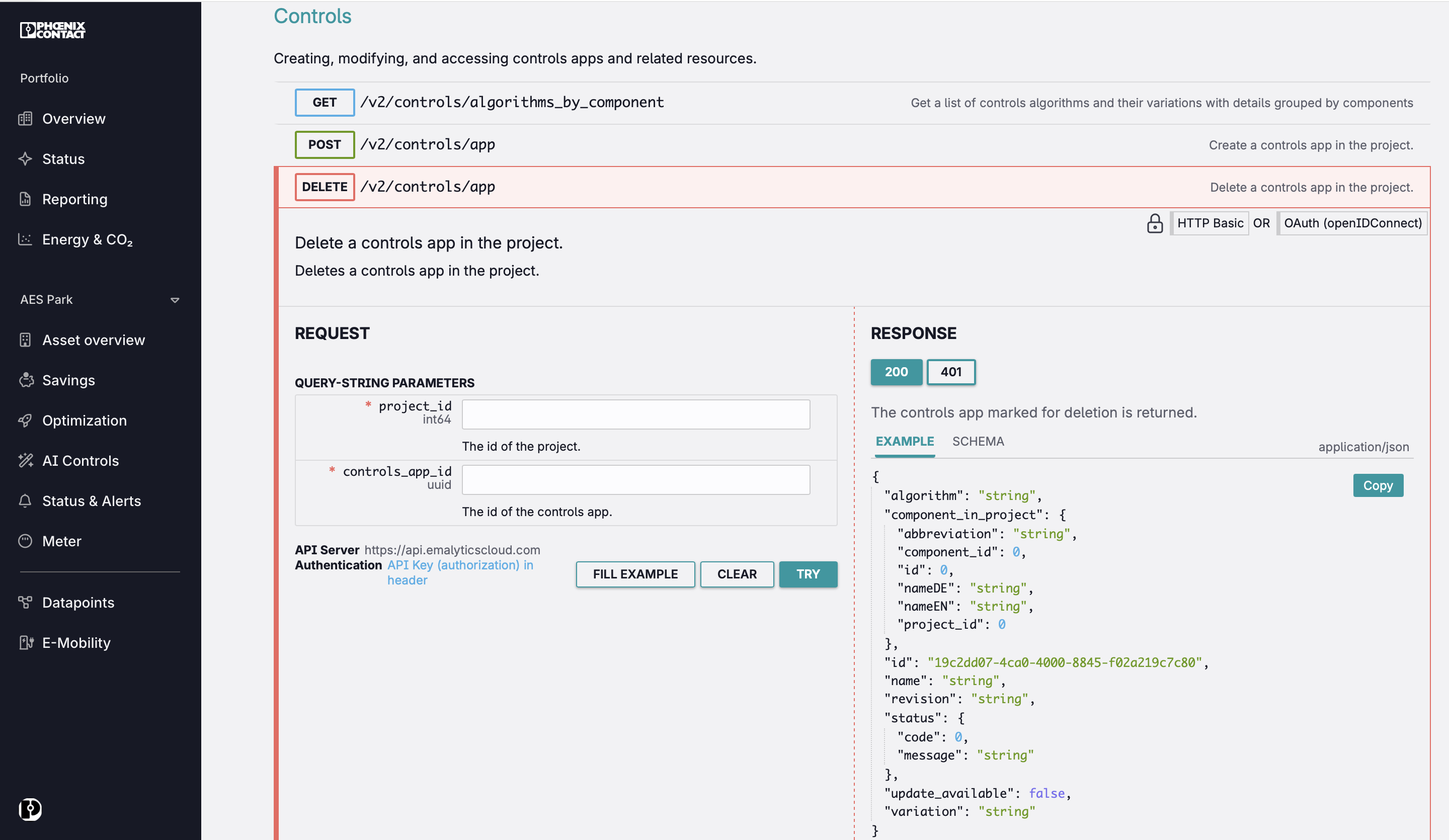
The project_id can be found in the url (see section above). To get the controls_app_id, use the API endpoint GET/v2/controls/apps. This GET endpoint lists all apps of project with their ids, metadata and status.